Canva
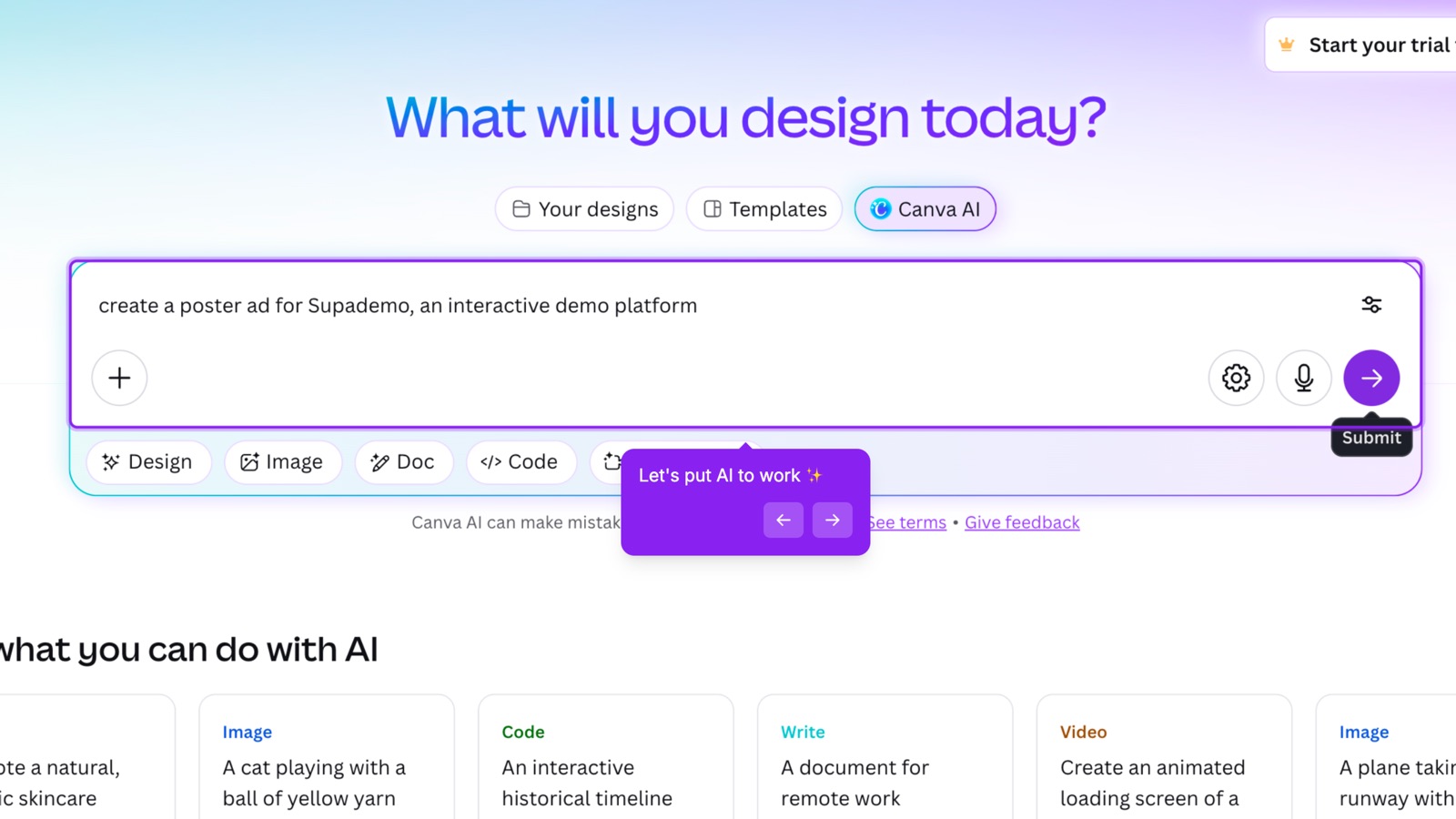
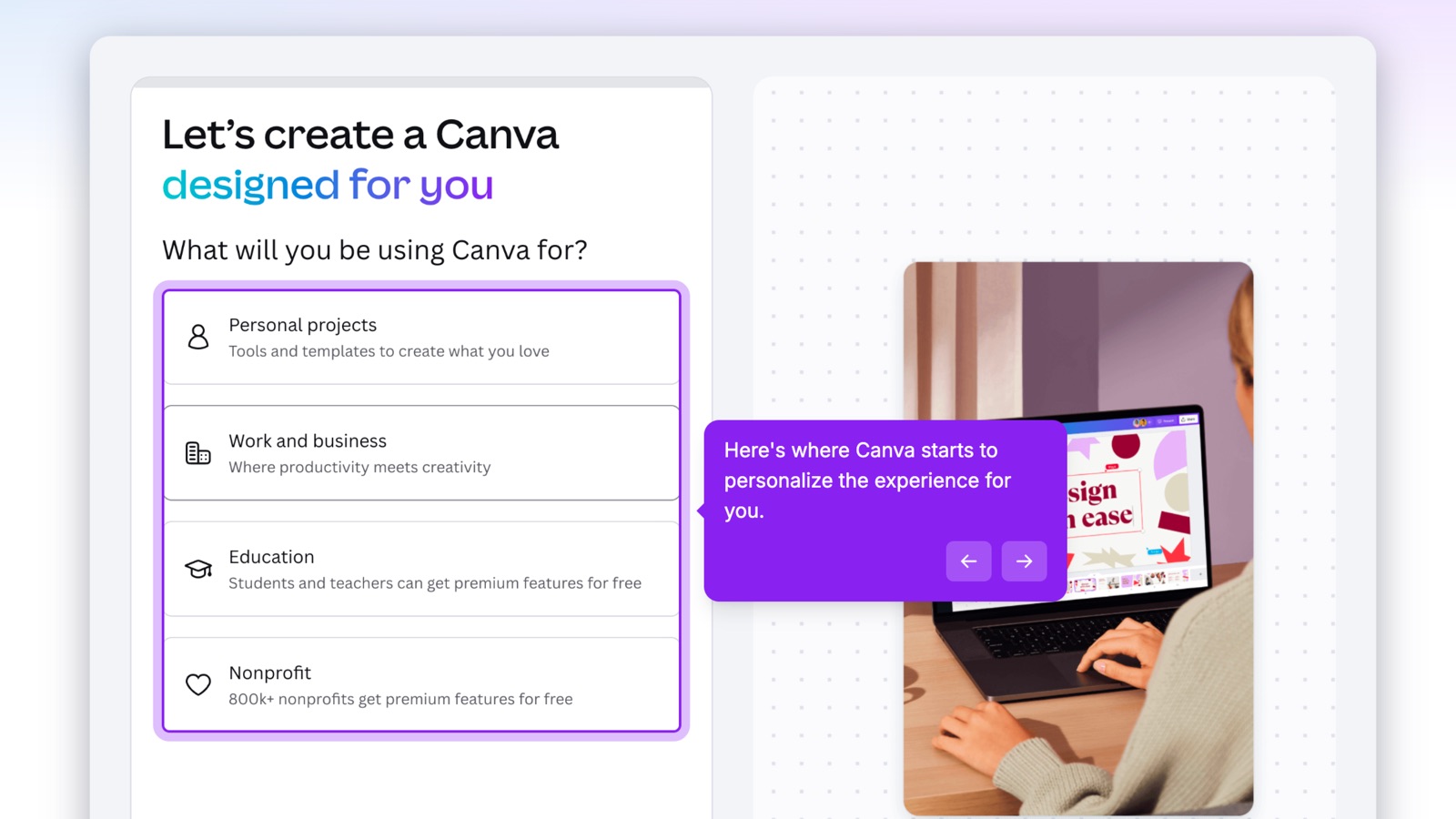
Canva asks one use-case question at signup and then drops new users on a home screen built around a Canva AI prompt ('What will you design today?'). The first design can be generated from a sentence instead of starting from a template.
Notes
- Signup asks a single use-case question (Personal, Work, Education or Nonprofit) that 'takes two seconds' and tailors template suggestions without a tour (Supademo teardown).
- The new-user home screen defaults to a Canva AI tab next to Your designs and Templates, with the prompt already filled ('create a poster ad for Supademo…') and mode chips for Design, Image, Doc and Code.
- Under the prompt, a 'what you can do with AI' row shows starter prompts by type (Image: 'A cat playing with a ball of yellow yarn', Code: 'An interactive historical timeline', Write, Video).
- An onboarding tooltip on the prompt bar reads 'Let's put AI to work ✨', so the AI entry point is the guided first step.
- Canva's Magic Design page pitches starting from a text prompt to generate on-brand designs 'whether you're a confident Canva user or a total beginner.'
Patterns
prompt-first homeempty-state promptsuse-case questiongenerated first project
Articles
- Magic Design: Free Online AI Design ToolCanvaby the team
- Canva onboarding flow teardownSupademo